Content Assistant (AI support in WebMiau)
The Content Assistant brings AI support directly into WebMiau. It helps you to create and revise content faster, but it never replaces your own review: every result is a proposal that you can check, edit and discard like any other document.
Currently it is available for Problems only. Other document types (articles, media, courses, ...) are not supported yet.
If you are interested, please contact contact@integral-learning.de.
If the feature is enabled for you, you will find an "AI" entry in the context menu of the File Explorer (right-click on a section or file) and an AI button in the editor toolbar. If you do not see these entries, the feature is not enabled for your account.
There are three ways to use the Content Assistant:
1. Create a new problem from a description
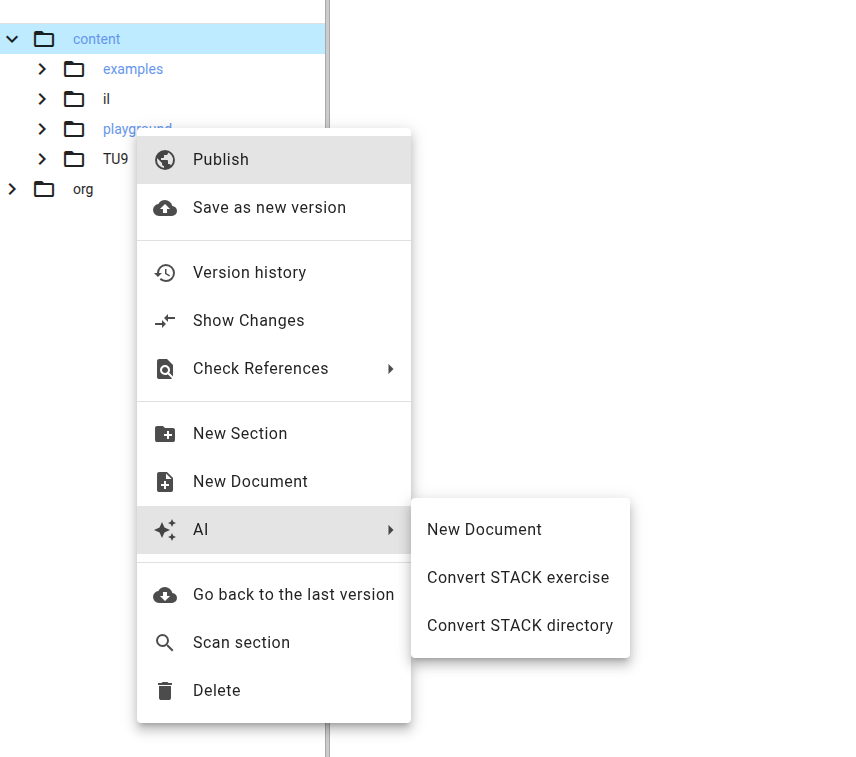
Right-click on the section where the new problem should be created and choose AI → New Document.
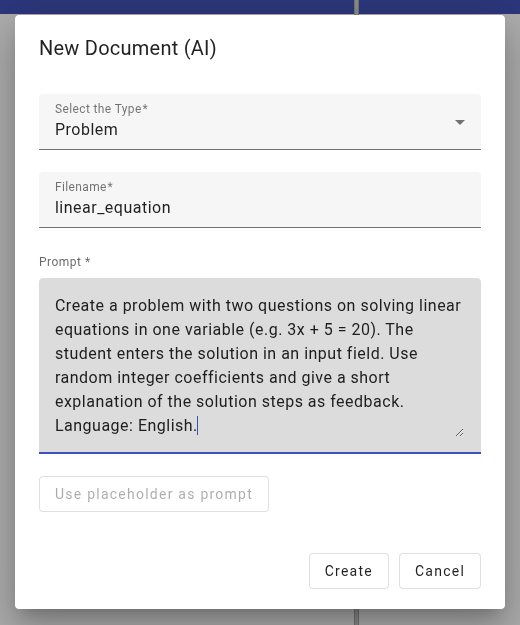
In the dialog you choose the document type, enter a file name and describe in your own words what the problem should be about, for example the topic, the kind of question (multiple choice, input field, ...), the difficulty and the language. A placeholder text shows an example of a suitable description; you can take it over as a starting point with "Use placeholder as prompt".
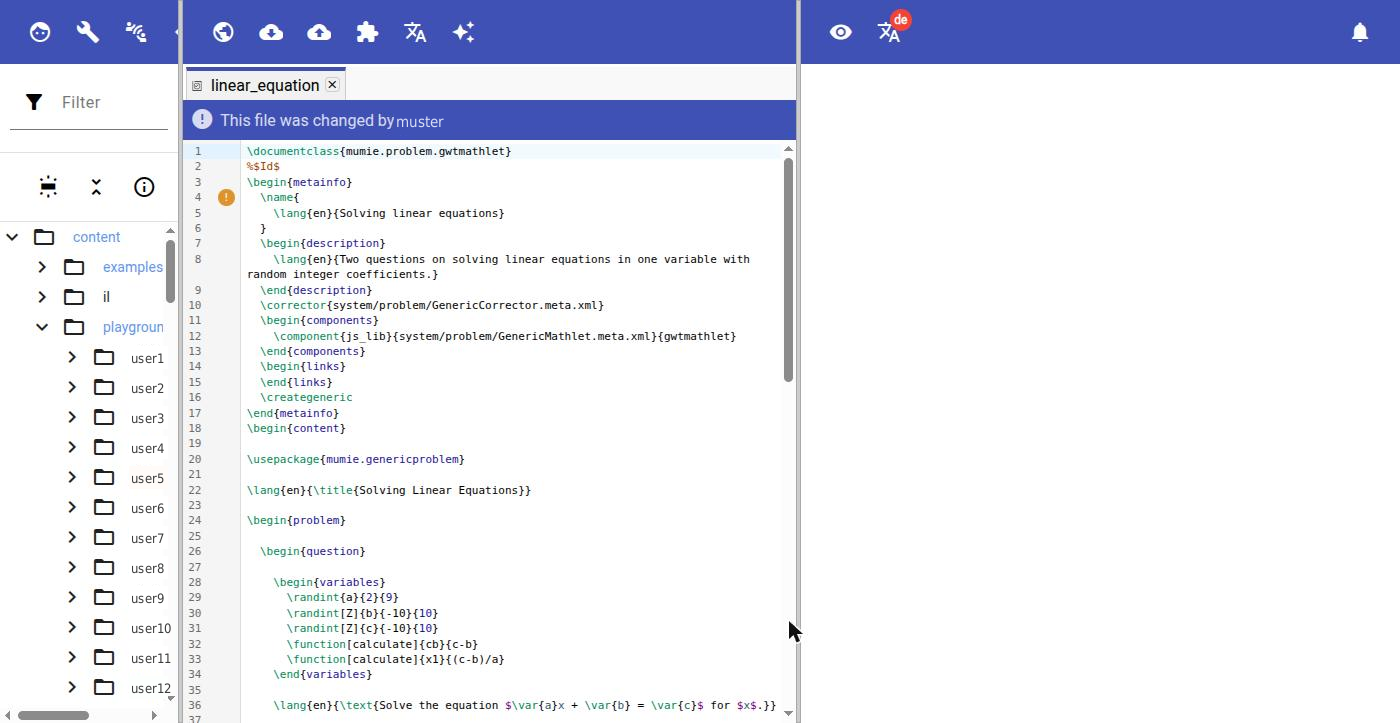
After pressing "Create", WebMiau generates the problem and creates it as a new file in the chosen section. The file opens in the editor like any other new document. Generating a document usually takes a minute or two.
2. Modify an existing problem
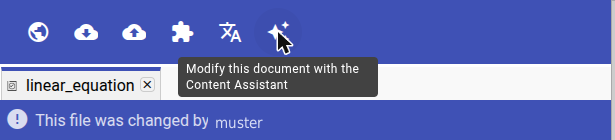
Open the problem in the editor and click the AI button in the editor toolbar, or right-click on the file in the File Explorer and choose Modify with AI.
In the dialog you describe the change you want, for example "add a third question about the derivative", "translate the problem into English" or "turn the input field into a multiple choice question". Example instructions that fit the document are offered as a starting point.
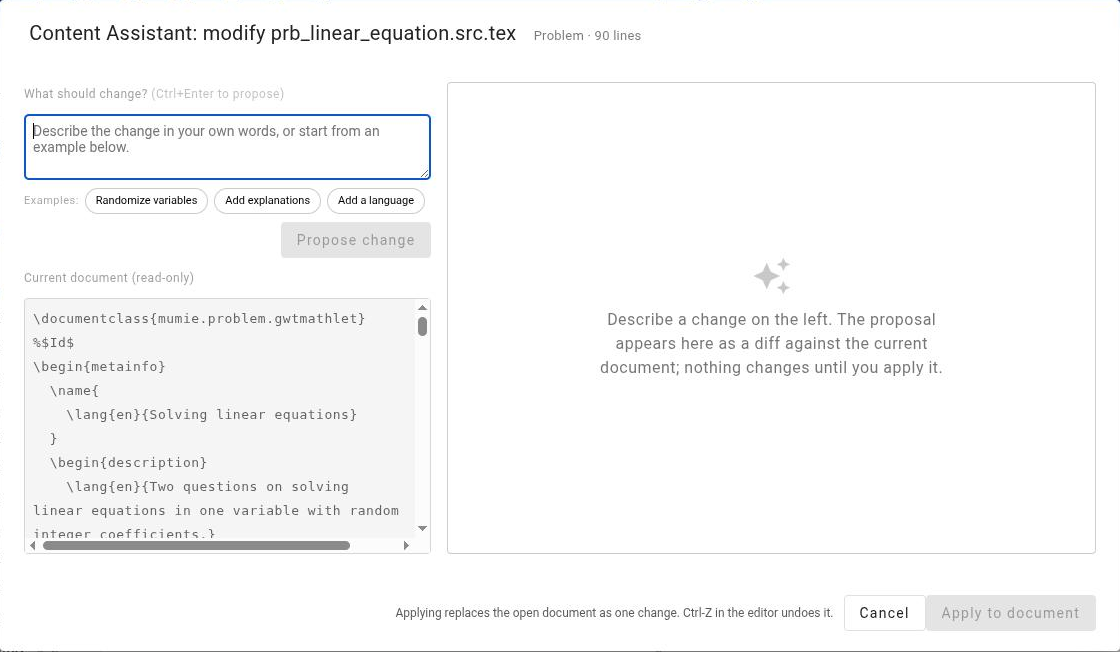
The Content Assistant then shows a proposal next to your current document:
- The "Changes" tab shows the proposal as a diff against the current document.
- The "Proposed document" tab shows the complete new version.
- A note tells you whether the proposal compiles. If it does not, you can still apply it and fix the remaining error in the editor, or change your instruction and ask for a new proposal.
Nothing is changed until you press "Apply to document". Applying replaces the open document as a single change, so Ctrl+Z in the editor undoes it.
3. Convert a STACK exercise into a problem
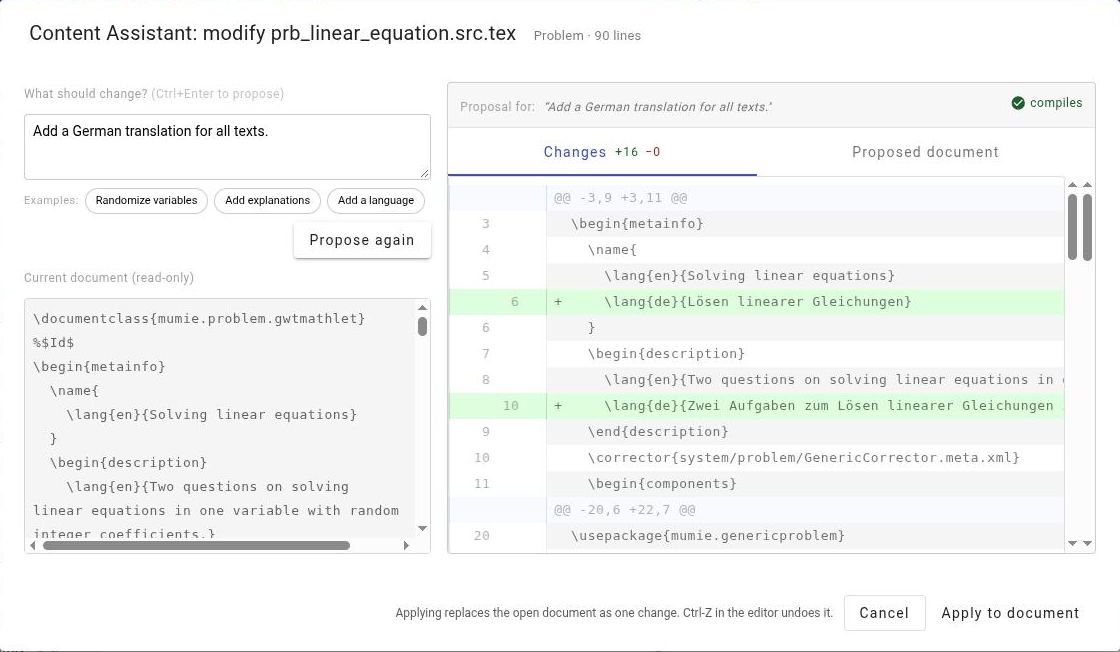
If you already have exercises in the STACK format (Moodle), the Content Assistant can convert them into problems.
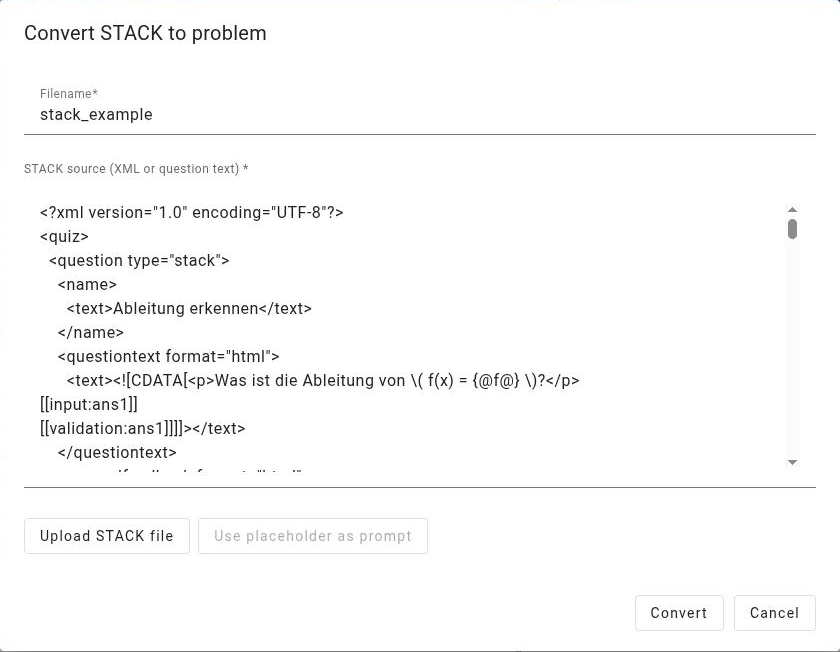
- Single exercise: right-click on a section and choose AI → Convert STACK exercise. Paste the STACK question source or upload the exported file, enter a file name and press "Create". The converted problem is created in that section.
 * Whole directory: choose AI → Convert STACK directory and select a folder with several
STACK exports. WebMiau converts them one after another and lists which files were created and
which could not be converted.
Converted problems should always be checked, especially the feedback and scoring, since not every STACK construct has a direct counterpart in the problem syntax.
Good to know
- All results are ordinary documents. You can edit, version and publish them as usual.
-
The Content Assistant works best with clear, specific instructions. Mention the topic, the kind of question, the number of questions and the language you want.
-
Always review generated and converted content before using it with students.